Monitoring on premises devices with Sentinel using Azure ARC
When talking about Hybrid clouds & multi cloud environments the main requirement is to monitor on premises devices.
And yes when it comes to Azure cloud the monitoring is way easier with Azure Sentinel (The mighty Microsoft SIEM platform)
But to monitor the On premises servers now azure introduced the solution Azure ARC. The solution itself manages a wide range of resources including Windows Server on Azure, Linux on Azure, SQL Server, Azure Kubernetes Service, and Azure Arc enabled data services.
Basically with the ARC service you can extend the Azure management and security capabilities to your hybrid and multi cloud environments, including your on premises devices.
Benefits of onboarding to Azure sentinel using Azure ARC
- Because of Microsoft Sentinel features, such as data collection,
- Analytics,
- Threat detection, investigation, and response
- To get a comprehensive view of your security posture and respond to incidents faster and more efficiently.
So now will see how you can onboard your on premises devices using Azure ARC,
As prerequisites:
you need to follow these steps:
- Enable Azure ARC on your Azure subscription. You can do this by going to the Azure portal, clicking on All Services, and searching for Azure ARC. Then, click on Enable Azure ARC and follow the instructions.
- Install the Azure Connected Machine agent on your on premises devices. This agent will allow you to connect your devices to Azure ARC and manage them from the Azure portal. Download the Windows agent from the Microsoft Download Center
- You need to register your On premises device with Azure ARC. To do that you need to Generate the installation script from the Azure portal
So first go to Azure Portal and go to On the Servers (Azure Arc) page, and select Add at the upper left.
1. On the Select a method page, under the Add a single server tile, then select Generate script. (This is since am trying to add a single server, If you need you can add servers from Update Management or Multiple servers.)
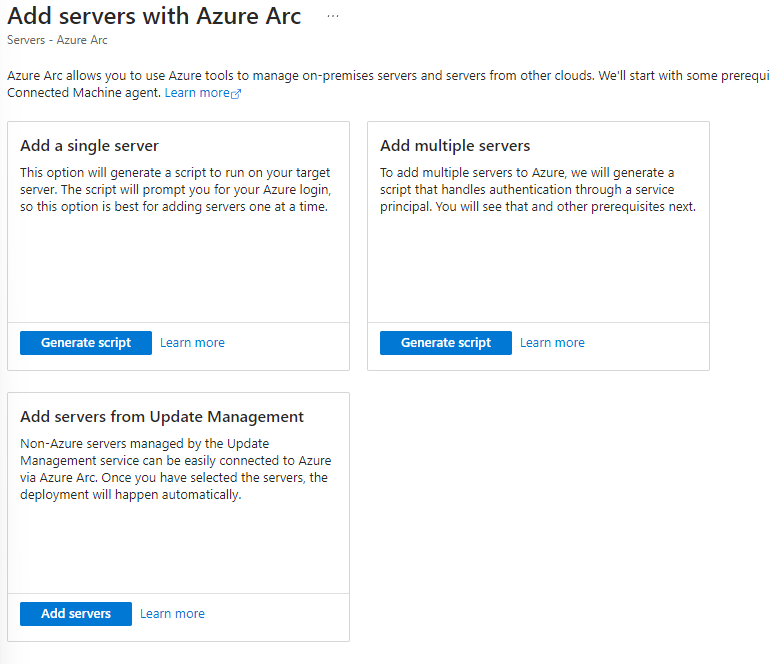
2. Now once you click the Add a single server, it will navigate you to generate the script.
3. In here you have to give the resource details such as subscription, Resource group, Server details, and Connectivity method and mainly you can enable the automatic management options which manage the best practice service automatically and this is FREE!
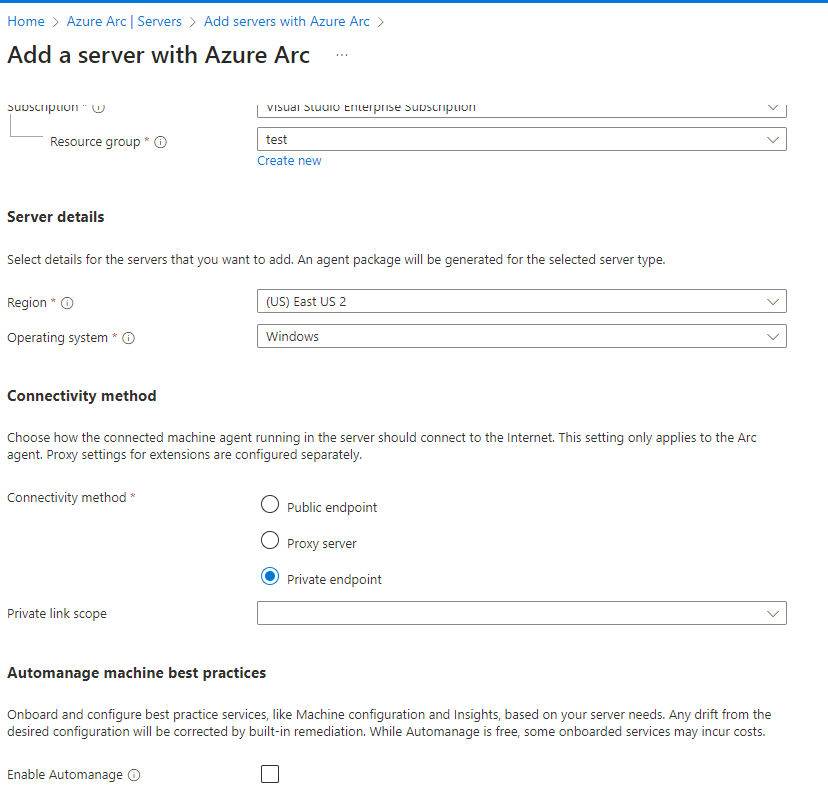
4. Next you can add Tags for your safety purpose!
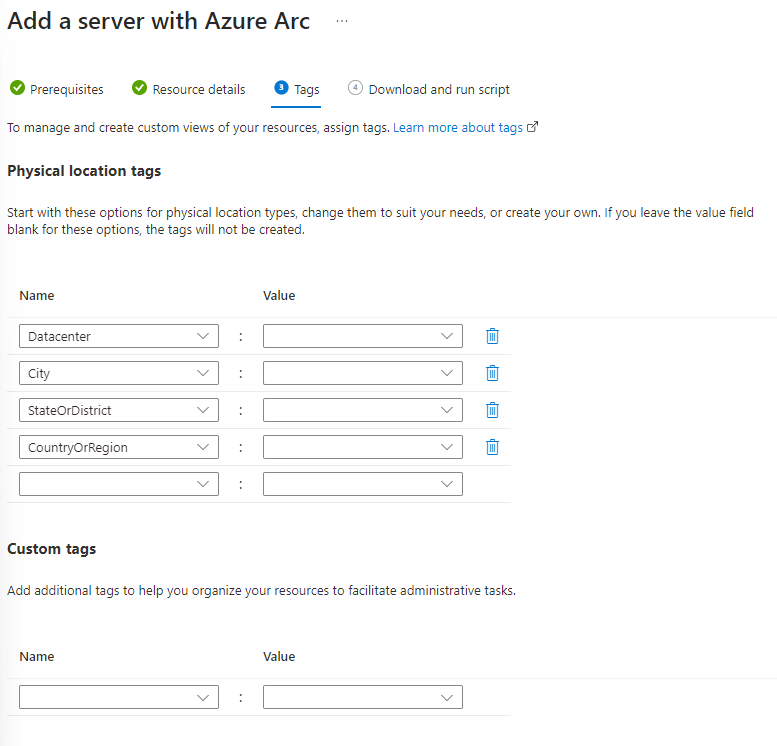
5. Once you are done you can download and run the script on your onboarding machine.
Note: You may need to authenticate your machine using your Azure credentials.
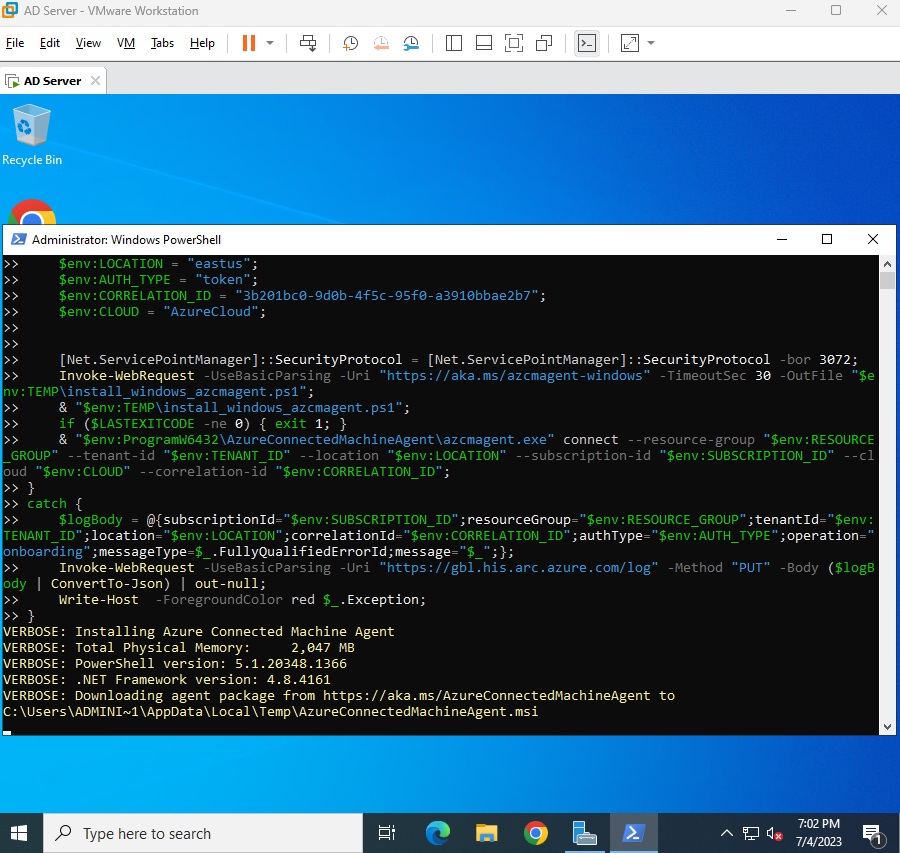
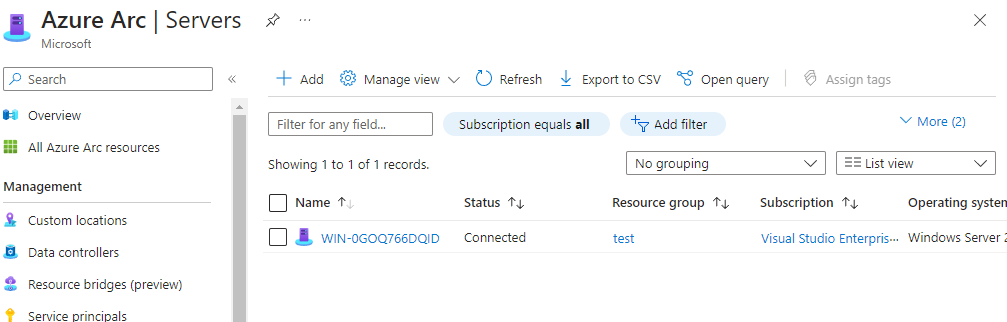
6. Now enable Microsoft Sentinel on your Azure subscription. You can do this by going to the Azure portal, clicking on All Services, and searching for Microsoft Sentinel. Then, click on Add Microsoft Sentinel and select the workspace where you want to enable it.
7. Connect your Azure ARC devices to Microsoft Sentinel. You can do this by connecting your device to the Log Analytics workspace, to do this go to the Log Analytics workspace and select your workspace and in the left side panel go to agent and install the agent in the VM and connect it to the log analytics workspace.
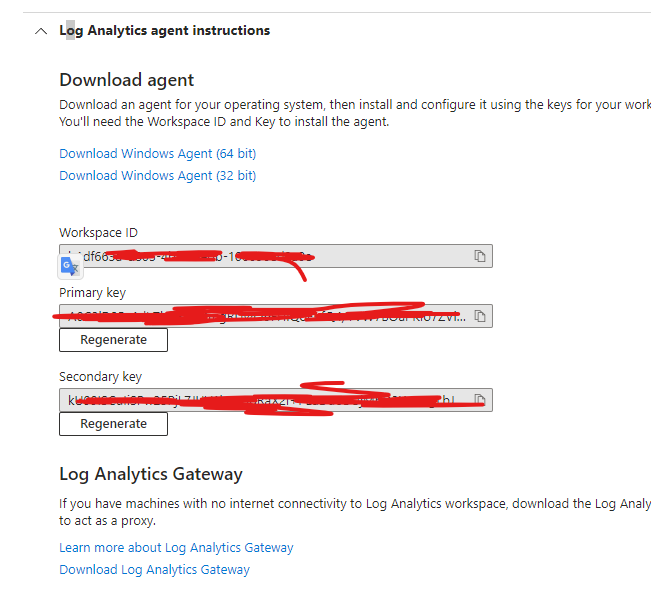
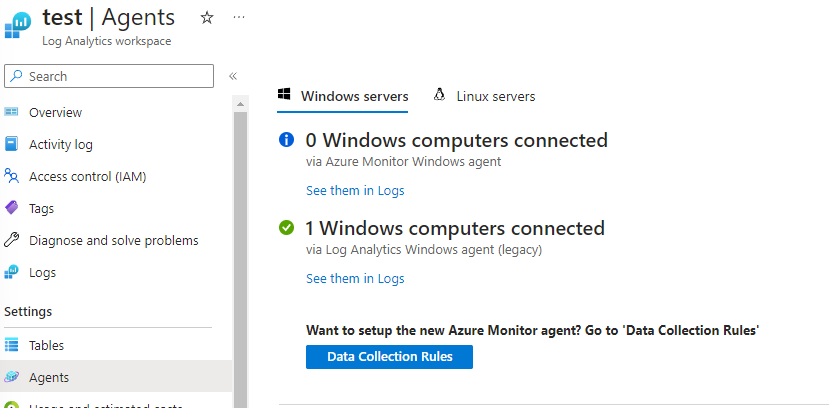
Once you connected you will see as below
8. Once you are onboarded you need to set a Data collection rule in the data source, this will give the scope to which logs you can collect.
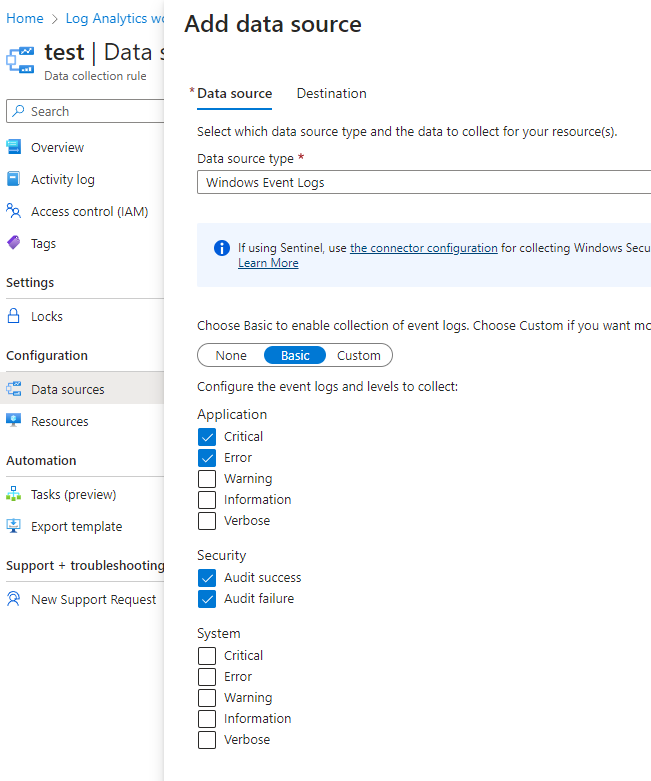
Once you save you need to wait for 24 hour to get the logs as a standard, Once all ok you will see a spike in Sentinal dashboard and you ready to go
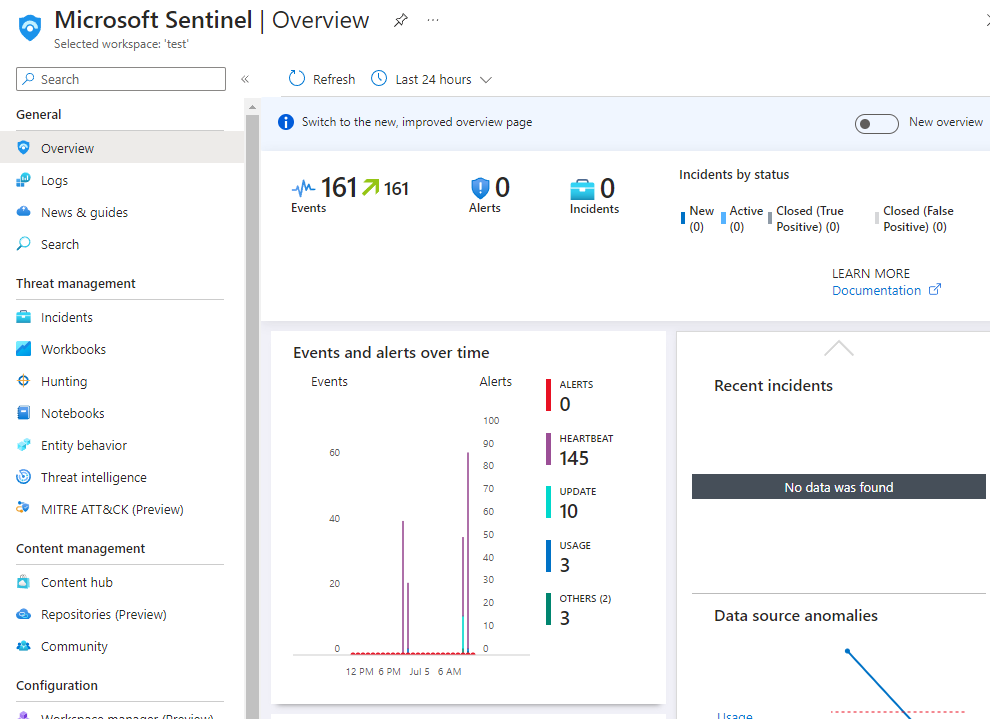
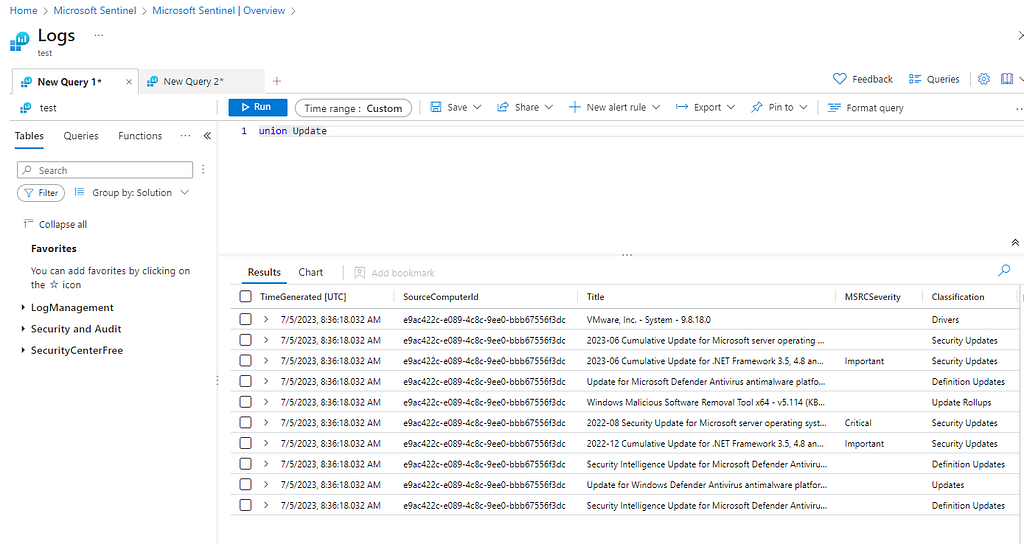
Now! You have successfully onboarded your on premises devices using Azure ARC and connected them to Microsoft Sentinel. Now you can start collecting data from your devices, creating analytics rules, detecting threats, investigating incidents, and responding to alerts using Microsoft Sentinel.